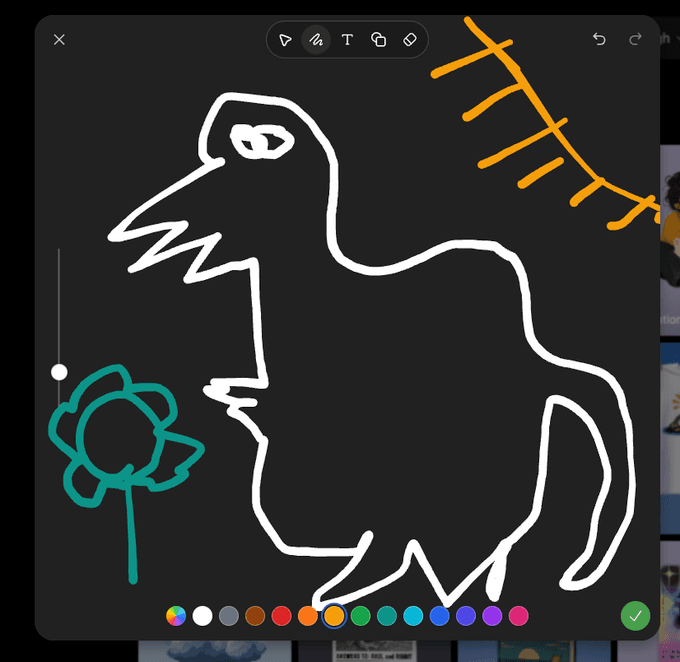
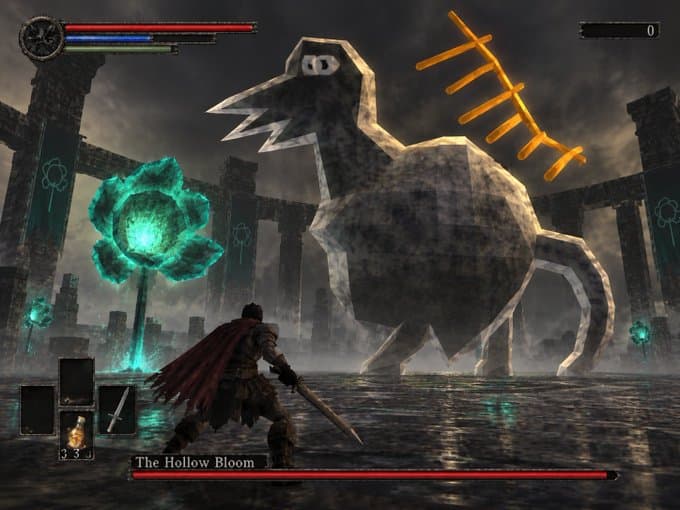
Turn a loose character sketch into a game scene.
The white bird, teal flower, and orange branch remain recognizable while the finished image builds them into a dark fantasy encounter.
 GPT Image 2.5
Draw right in your browser — no file to upload, no drawing skills needed. GPT Image 2.5 turns your sketch into a finished image and keeps your layout and positions exactly where you put them. 10 free credits on signup.
See what a simple sketch can become. Start with positions, silhouettes, and a few visual cues. These examples show how a drawing can guide subject placement while the prompt defines the final medium, detail, and atmosphere.
Watch the supplied sketch-to-image example.
The white bird, teal flower, and orange branch remain recognizable while the finished image builds them into a dark fantasy encounter.
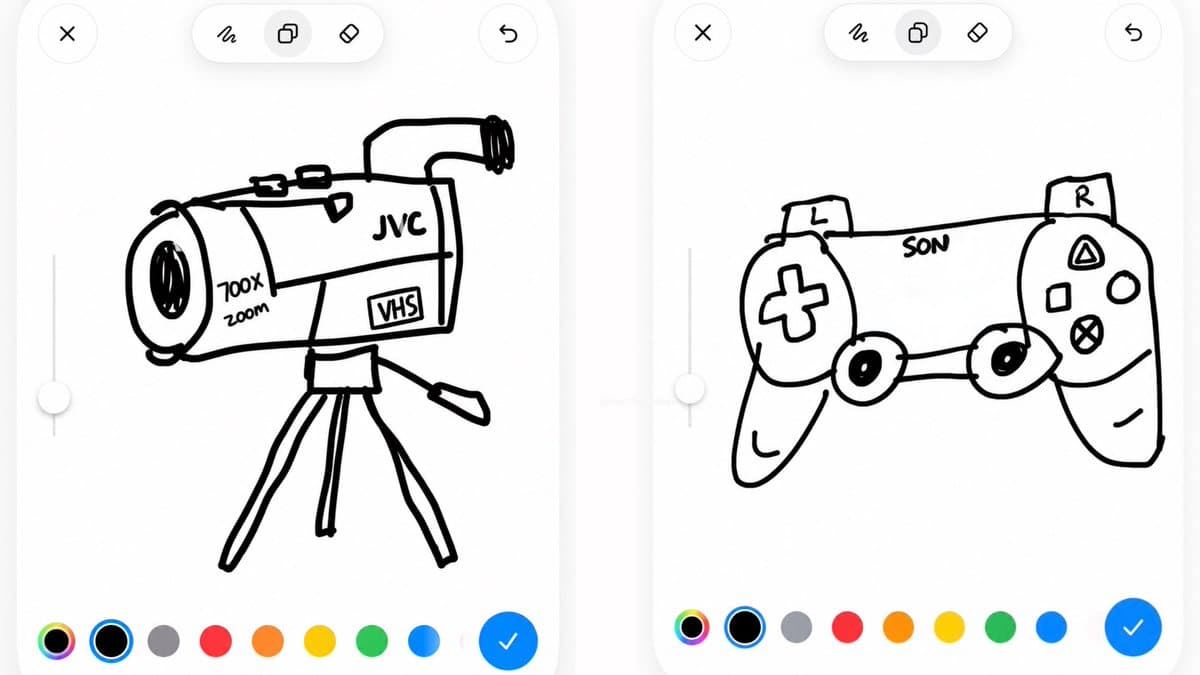
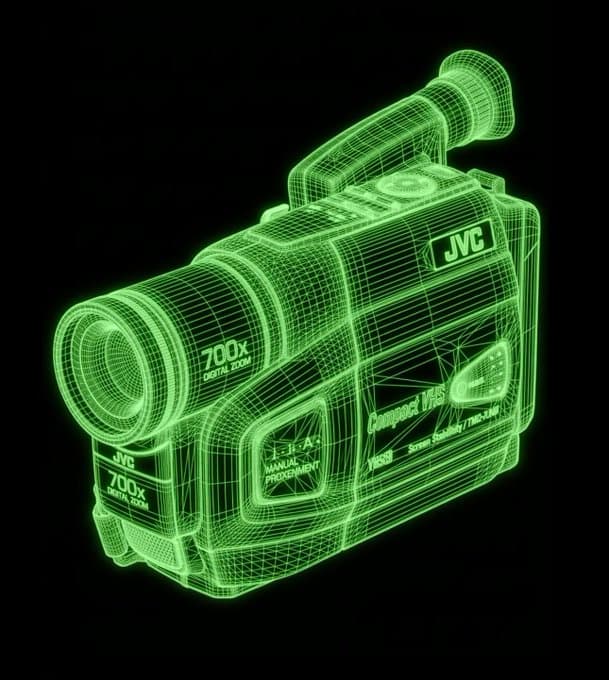
The camcorder drawing establishes the silhouette and viewpoint; the result interprets it as a luminous green wireframe model.
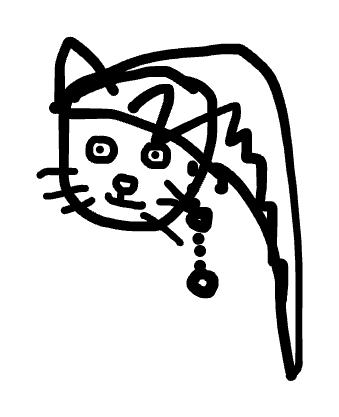
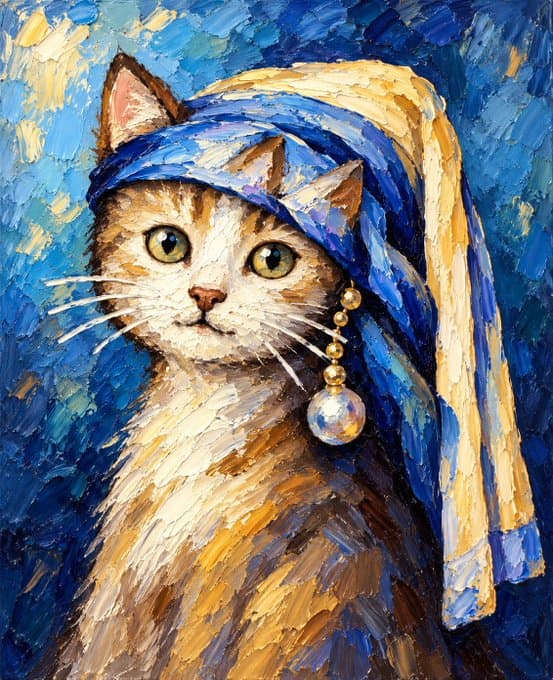
The head covering, face placement, and hanging ornament guide a textured oil-paint interpretation of the cat.
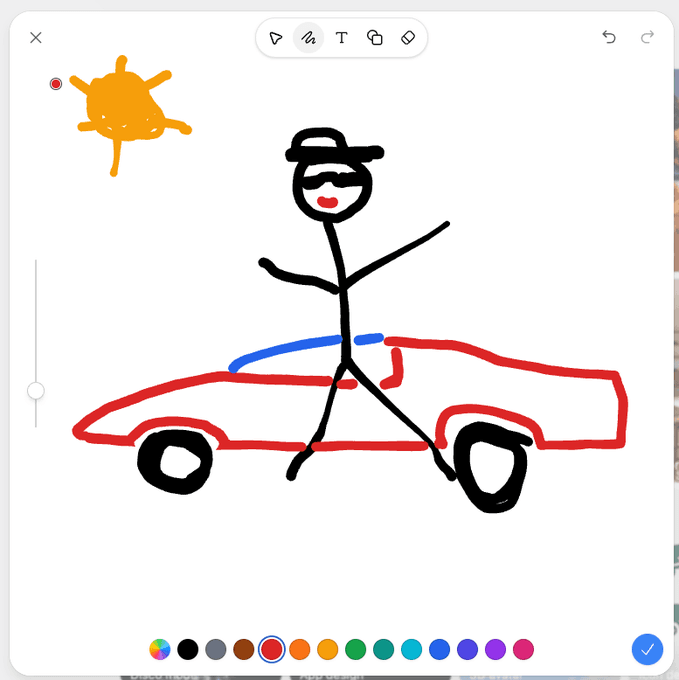
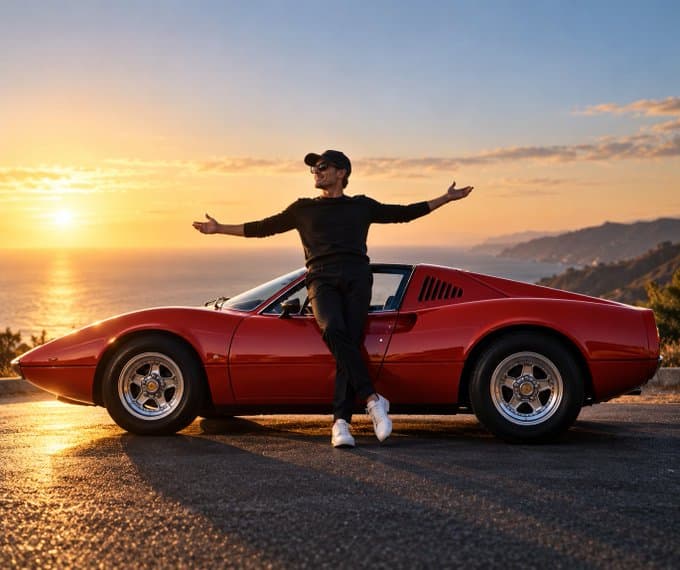
The red car, standing figure, and sun define the composition before the result adds a coastal road, sunset light, and photographic detail.
Follow the mountain ridges and winding river from the drawing into the rendered scene. The reference supplies the arrangement; the finished image adds depth, texture, and light.
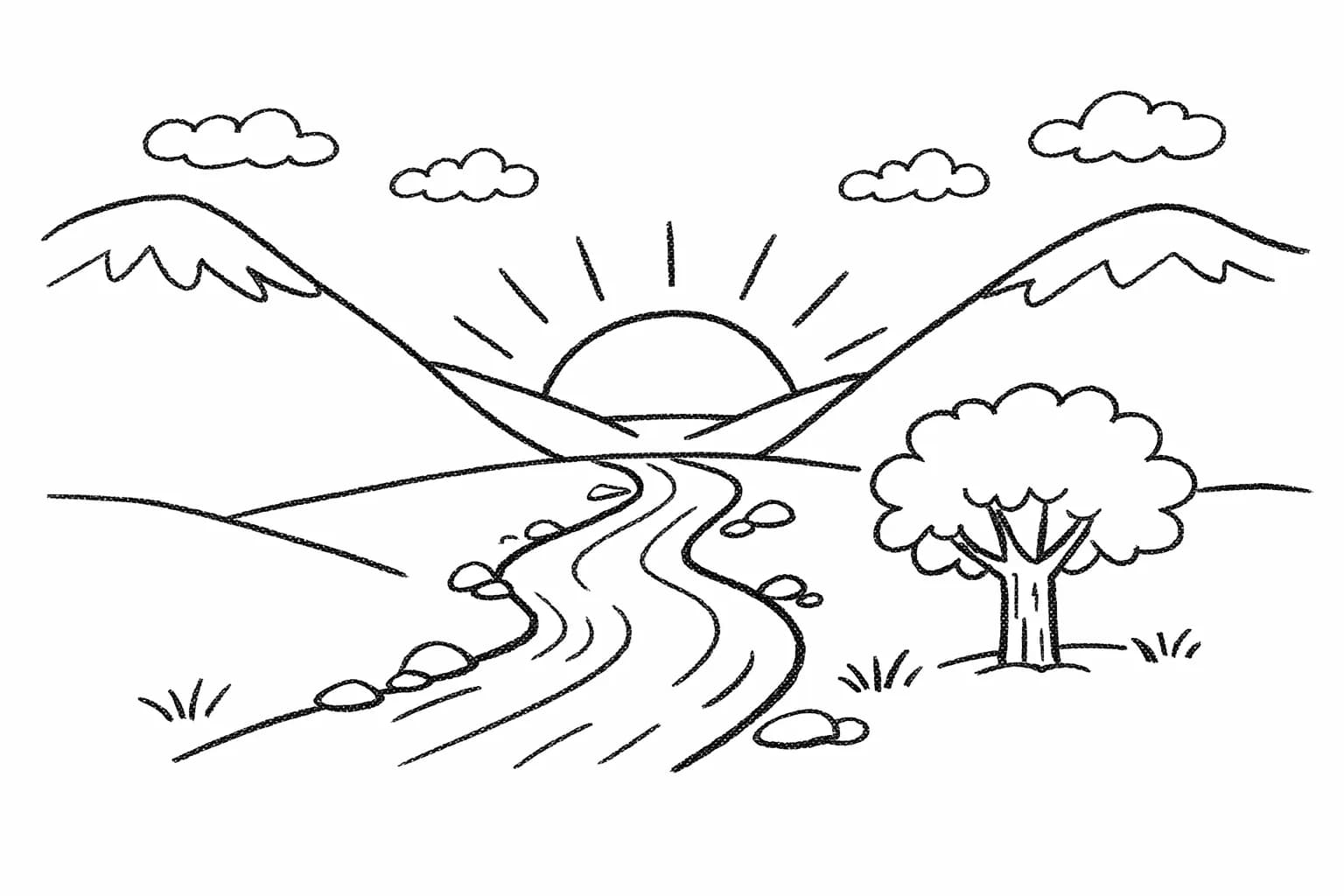
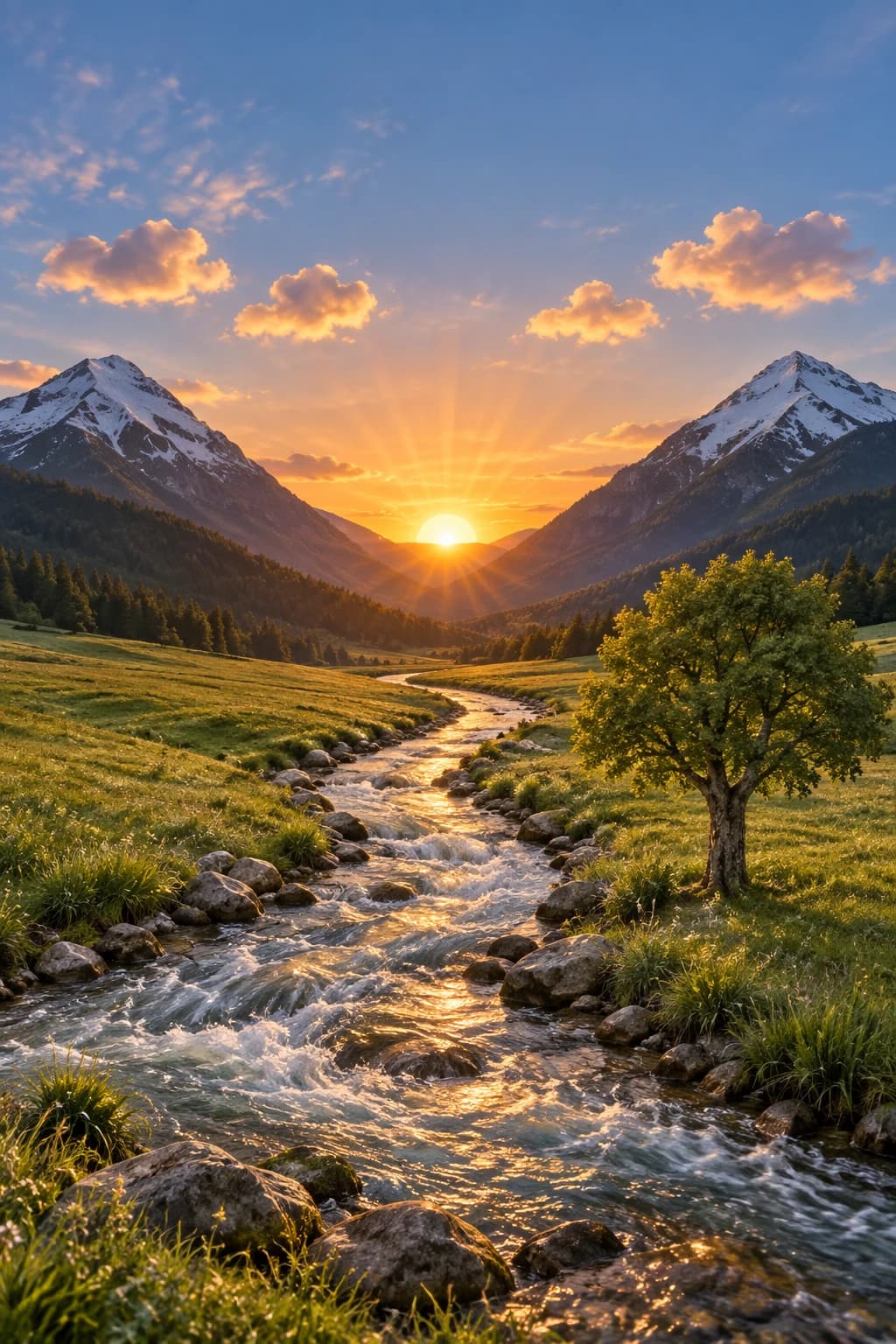
From a few lines to a clear direction. A drawing can express a layout that is hard to describe. Use GPT Image 2.5 sketch to image to give your prompt a visual starting point.
Place the subject, background, and supporting objects. Use simple shapes for proportions, a brush for contours, and short labels for important details.
Add the material, mood, lighting, and medium you want. Your current canvas is saved automatically when you generate. Draw something first: empty canvases cannot be submitted.
Check the credit cost, sign in, and generate. Review the image against your layout. Adjust the drawing or prompt, then apply your updated reference for the next attempt.
Draw what words leave open.
Block out a sofa, table, windows, and walking space. Name the materials and lighting in your prompt. Use the sketch to communicate furniture placement before exploring a finished room.
Draw a silhouette, mark the handle or opening, and show a few color areas. Ask for a particular material and viewpoint to explore how the concept could look.
Reserve space for a headline, central image, and footer. Label those areas, then specify whether labels should appear in the final design or only act as instructions.
Keep the sketch simple. Make the intent specific.
Give important objects enough space and use contrasting colors to distinguish them. Avoid filling the canvas with small marks that compete with the main composition.
Ask to preserve the subject’s position, silhouette, or relative scale. Then describe the changes you want: a new medium, realistic textures, or a different atmosphere.
Export includes the visible canvas background. Choose a background that contrasts with your strokes, apply the latest reference, and check the preview before generating.
Sketch to image questions.
Sketch to image AI uses a drawing as a visual reference for image generation. You draw the main shapes and positions, then add a prompt describing the finished image. This independent website combines a browser drawing board with its GPT Image 2.5 generator.
Draw or arrange the main subjects on the canvas, add a prompt describing the style, lighting, materials, and details you want, then generate. Your current canvas is exported as a PNG reference automatically when you submit, so the AI receives both your layout and your written instructions.
Yes. A rough drawing can guide the subject placement, silhouette, and composition while your prompt asks for realistic materials, lighting, depth, and photographic detail. Simple shapes are enough, but the result may reinterpret small lines or proportions.
The browser drawing board and PNG export are free. AI image generation requires an account and uses credits based on the selected model and settings. New accounts receive 10 credits on signup, and the exact generation cost appears before you submit.
Your sketch acts as a composition reference, so GPT Image 2.5 can follow the relative positions, scale, and silhouette of the elements you draw. For the strongest match, state which parts must stay in place. AI generation can still reinterpret proportions and small details, so an exact line-for-line result is not guaranteed.
No. Start with simple outlines, arrows, and a few labels. Show where important objects belong and leave fine details such as material, lighting, and texture to your prompt. A clear layout is more useful than a polished drawing.
Use sketch to image when layout matters: subject placement, relative scale, pose, room arrangement, or reserved text areas. Use text-to-image when you want the AI to explore the composition from a written idea. Choose sketch to image when showing the arrangement is easier than describing it.
The sketch guides composition, but generation may reinterpret proportions, labels, and small details. State which positions and shapes to preserve, inspect the result, and revise your sketch or prompt when needed.
The checkmark exports your canvas as a PNG reference and adds it to the generator. Choose Landscape (1536 × 1024), Square (1024 × 1024), or Portrait (1024 × 1536) with the Canvas control. Your selected background, including transparency, is preserved. Toolbars and selection boxes are excluded. Confirming a sketch does not start a generation task or use credits.
The current editable draft and applied PNG reference are saved locally in this browser when storage is available. They are not automatically synced to another device. Clearing browser data may remove them. Download a PNG to keep a separate copy; a PNG does not preserve editable objects.
Drawing and exporting happen in your browser. The applied reference is uploaded through this website’s image upload service when you submit a generation task. AI generation requires signing in and uses account credits; the cost appears before submission.
Yes. Continue drawing or undo a change, then confirm your sketch again. This replaces the generator’s sketch reference with a fresh PNG. An already submitted generation task continues using the image originally submitted.