Upload a photo and describe what to change. Edit backgrounds, objects, outfits, and styles with GPT Image 2.5, then review and download your result.
Independent service, not affiliated with OpenAI. Uses this website’s account and credits. New accounts receive 10 signup credits.
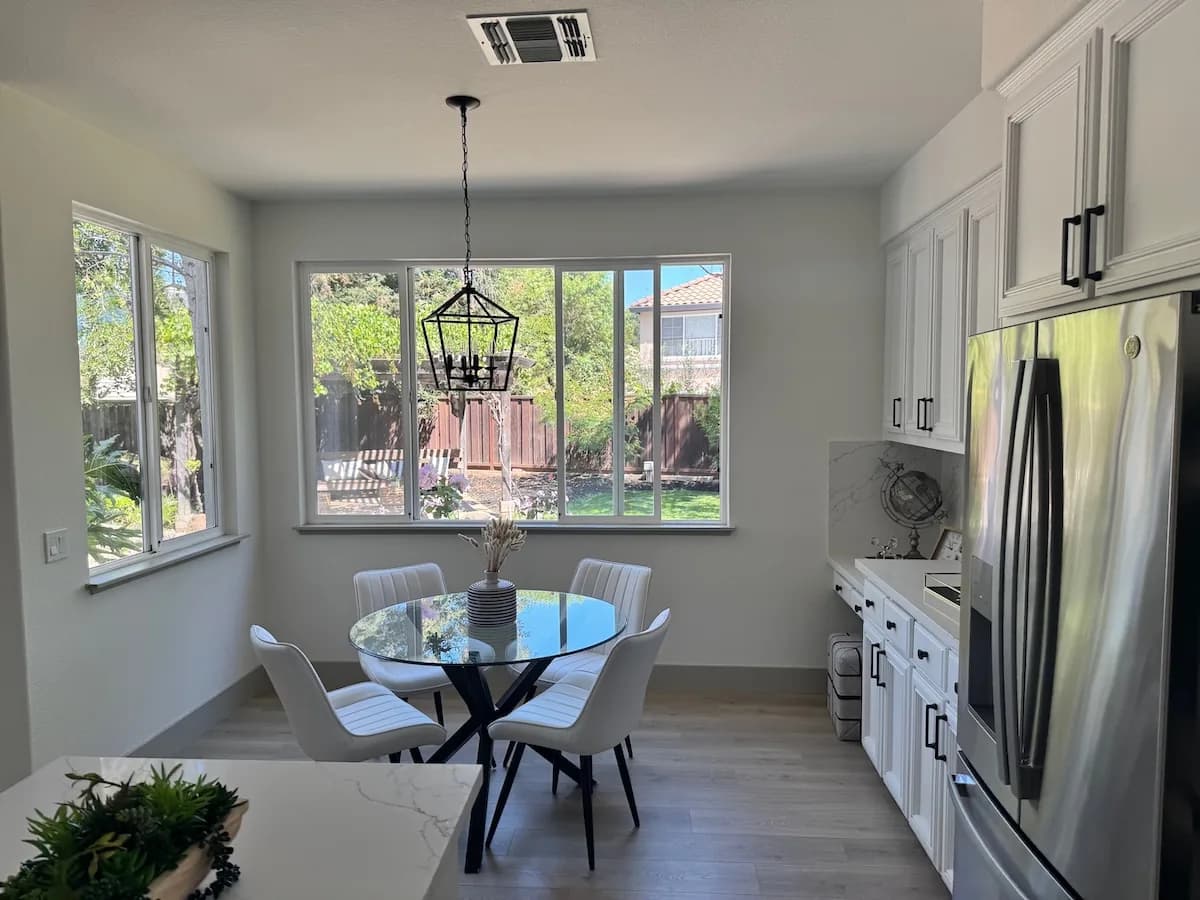
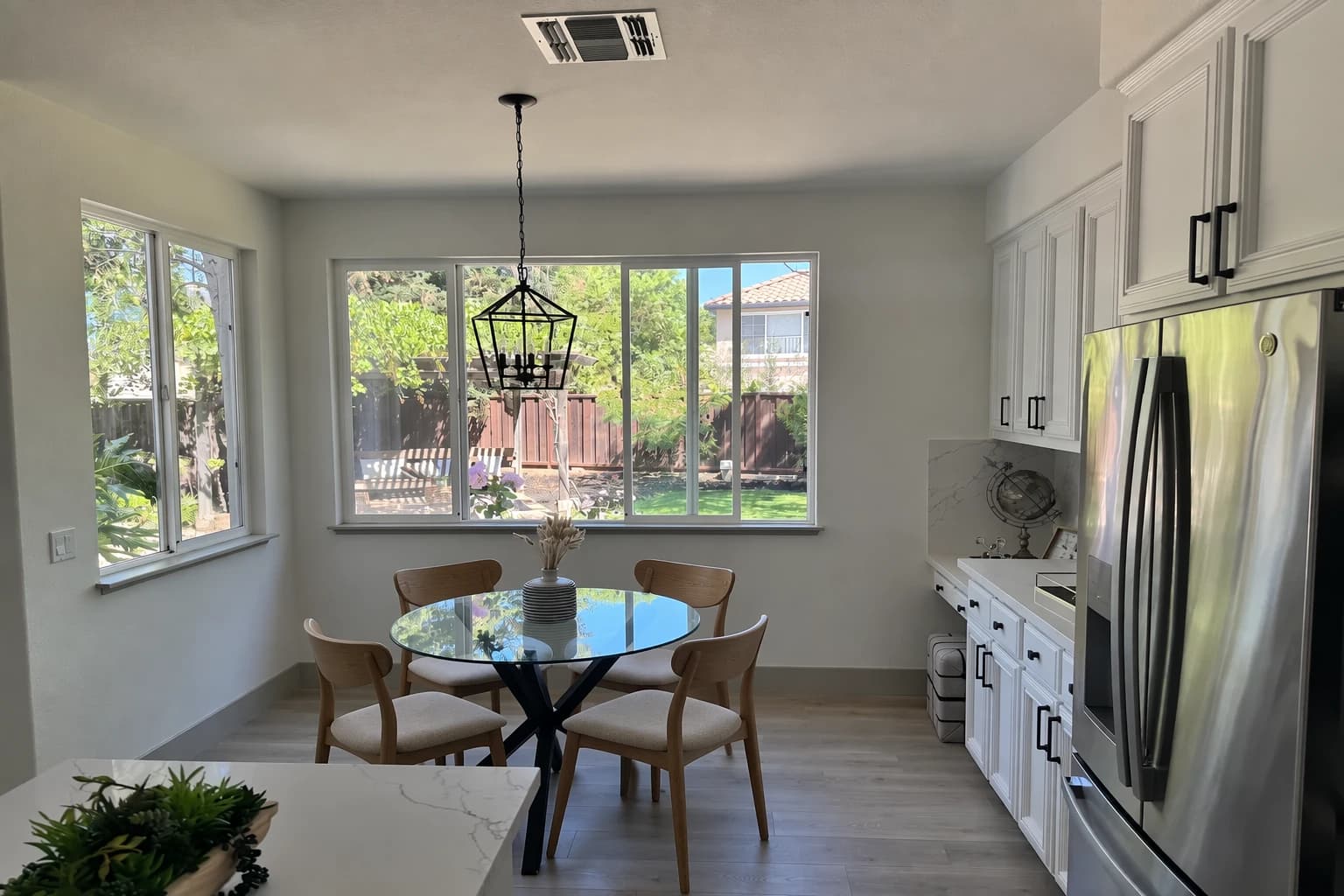
Replace the white dining chairs with natural wooden chairs. Keep the table, windows, kitchen cabinets, camera angle, and daylight as close to the reference as possible. Match the new chairs to the room’s perspective and shadows.
Your recent images
Sign in to create an image and see your recent work here.
ChatGPT Image Editor for photo editing in plain language
Start from a photo you already have. This ChatGPT image editor lets you request a change with words: a different background, a replacement object, a new outfit, or an illustrated style. The uploaded image provides the visual reference; your prompt explains the edit.
The editor uses GPT Image 2.5 Flare and Sunburst through this independent website. It supports image uploads and text instructions. It does not include a brush or mask tool, and an edit can also change details you intended to keep.
ChatGPT Image Editor examples, before and after
Compare existing GPT Image 2.5 reference examples to see the kinds of changes you can request. The prompts below are suggested wording, not the original instructions used to produce these images. Your results will vary.
Replace an object in an existing photo
The white dining chairs become wooden chairs. Compare the table, windows, lighting, and room layout as well as the furniture you asked to change.
Original · White dining chairsSunburst edit · Wooden dining chairs
Suggested edit prompt
Replace the white dining chairs with natural wooden chairs. Keep the table, windows, kitchen cabinets, camera angle, and daylight as close to the reference as possible. Match the new chairs to the room’s perspective and shadows.
Change an outfit around a recognizable subject
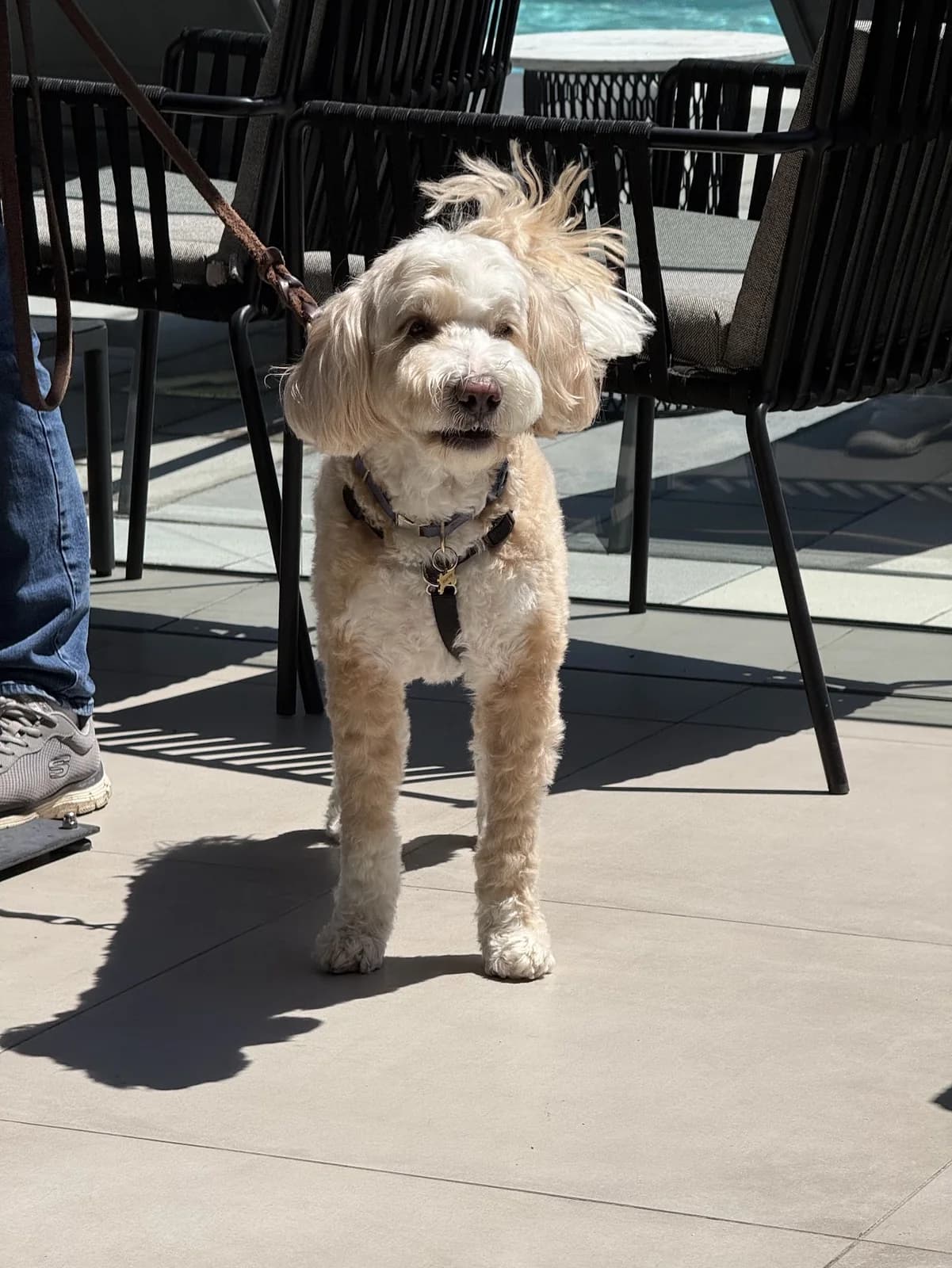
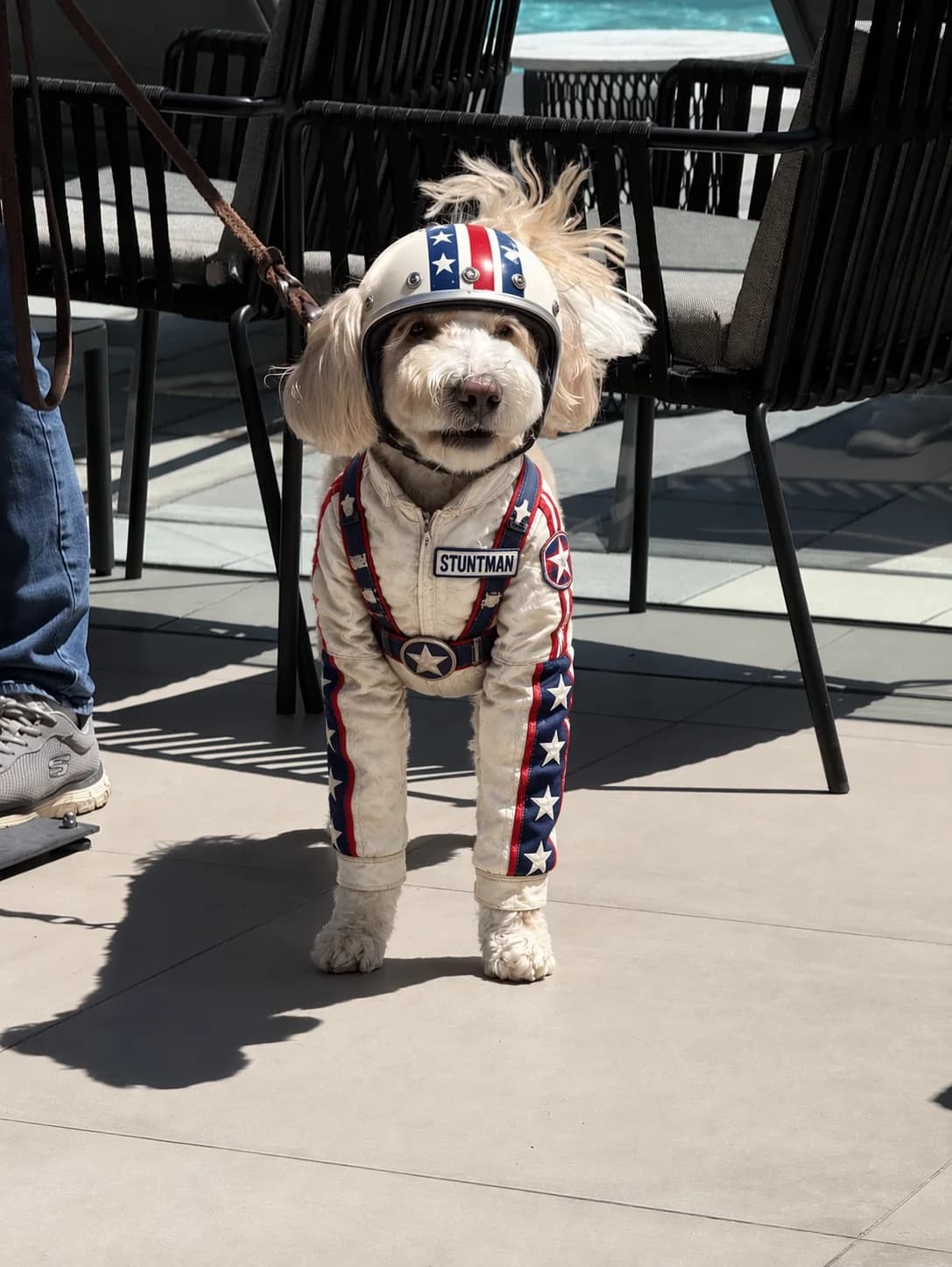
A dog gains a stunt performer’s costume. Look at the face, fur, pose, leash, and patio details to judge what the edit retains.
Original · Dog on a patioEdited example · Stunt costume
Suggested edit prompt
Dress the dog in a realistic white stunt performer’s suit and helmet with red and blue stripes. Keep its face, fur, pose, leash, and the surrounding patio as close to the original as possible. Fit the costume naturally to its body.
Change the setting of a campaign image
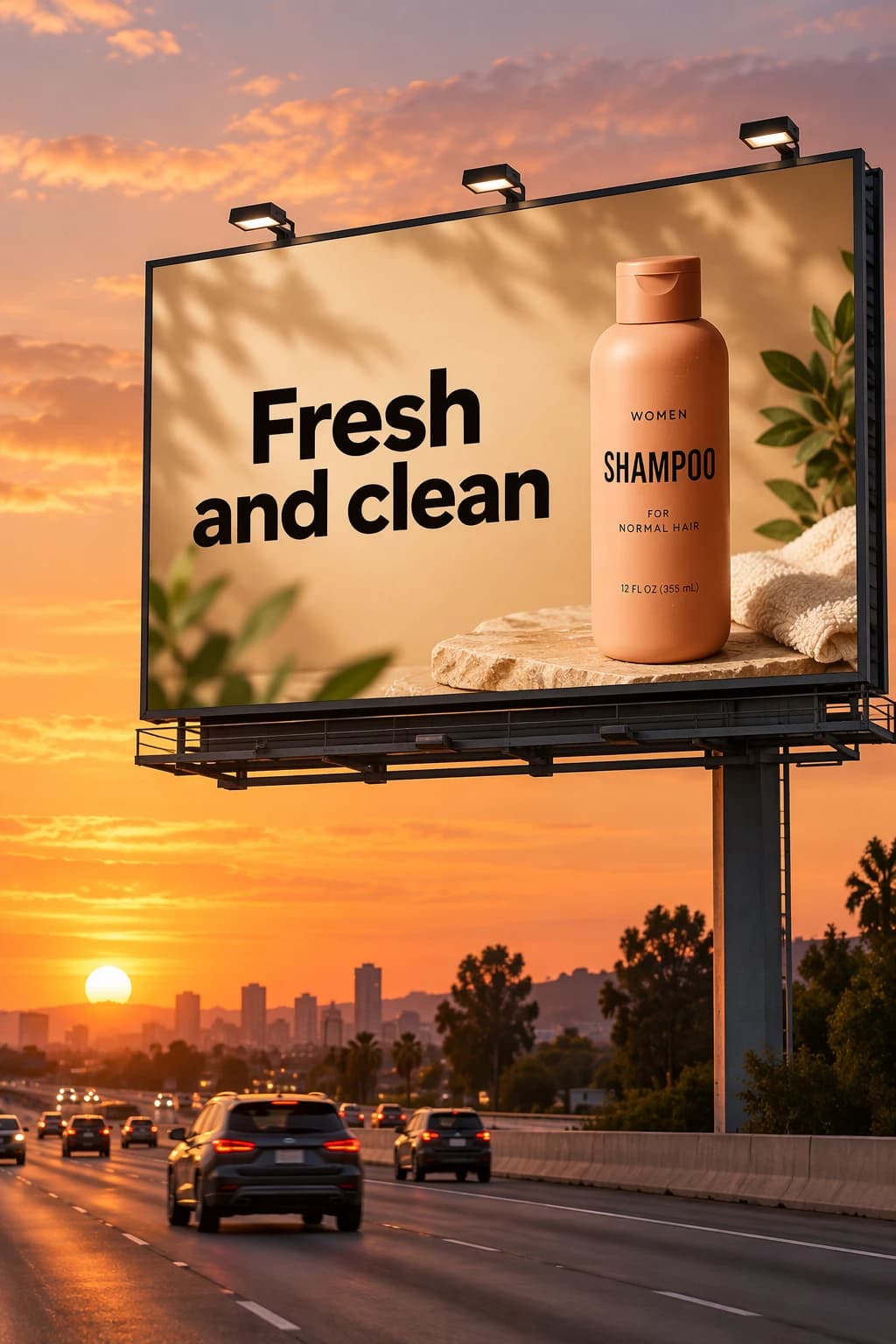
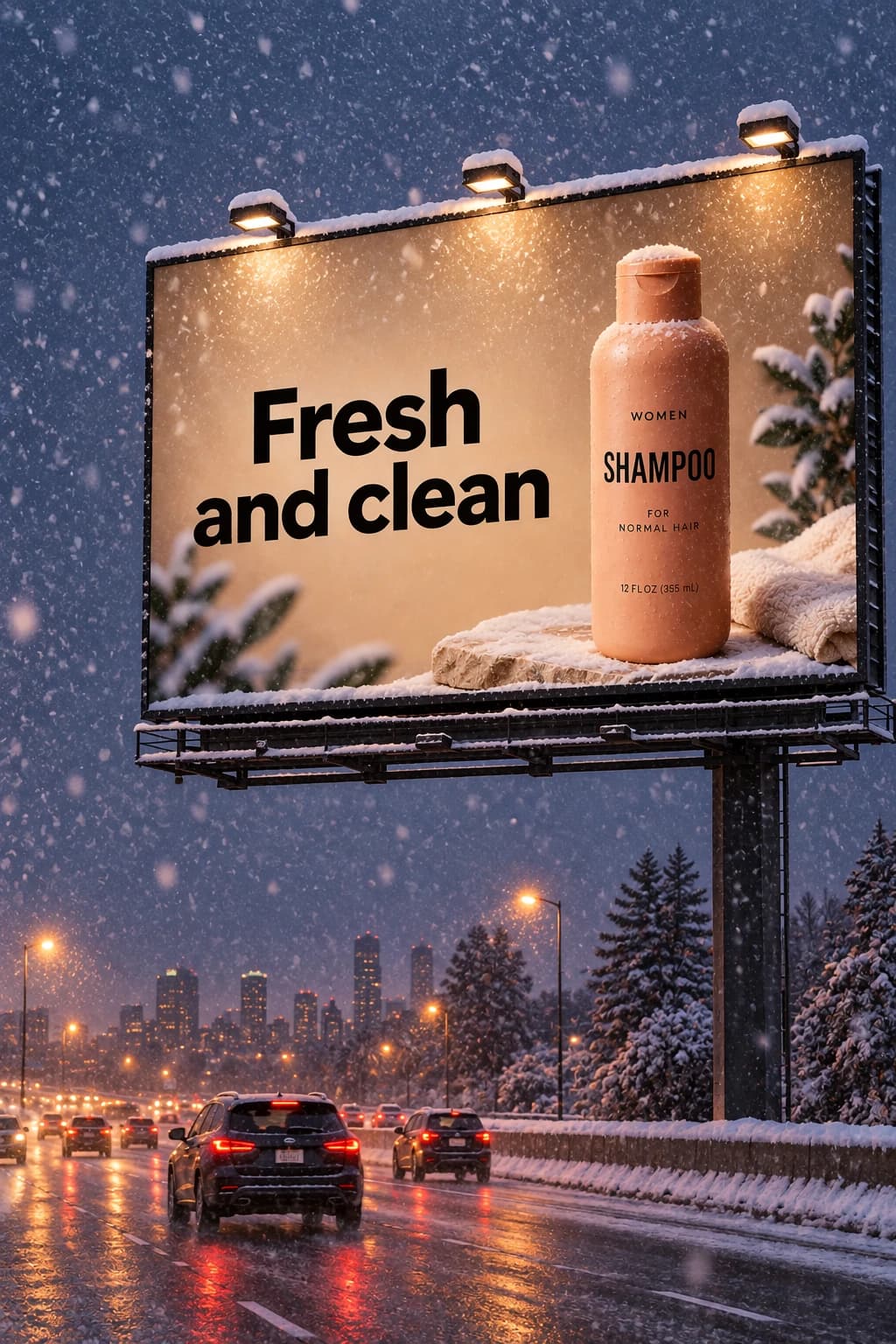
A sunset billboard scene becomes a snowy evening. Inspect the product, advertisement text, and billboard structure after the change in weather and light.
Turn this roadside billboard scene into a snowy winter evening. Add snow to the ground and a cool evening sky with believable lighting. Keep the billboard placement, product artwork, and advertisement wording as close to the reference as possible.
ChatGPT Image Editor uses for backgrounds, products, portraits, and styles
Choose the kind of change you need, then adapt the prompt to your own reference image.
Backgrounds & scenes
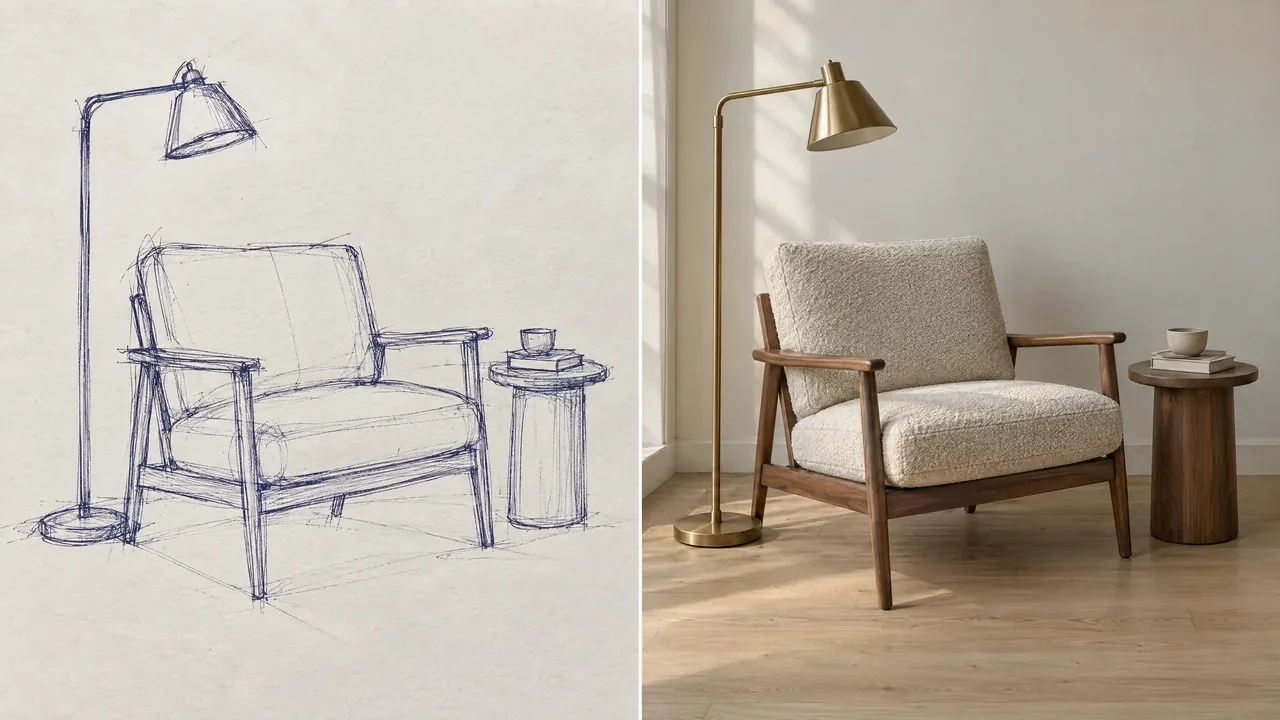
Sketch to finished image
Use a room sketch to guide the placement of furniture and lighting in a finished interior.
Suggested edit prompt
Turn this room sketch into a realistic interior photograph. Retain the layout of the armchair, floor lamp, and side table. Use warm daylight, natural wood, textured upholstery, and a simple neutral wall.
Products
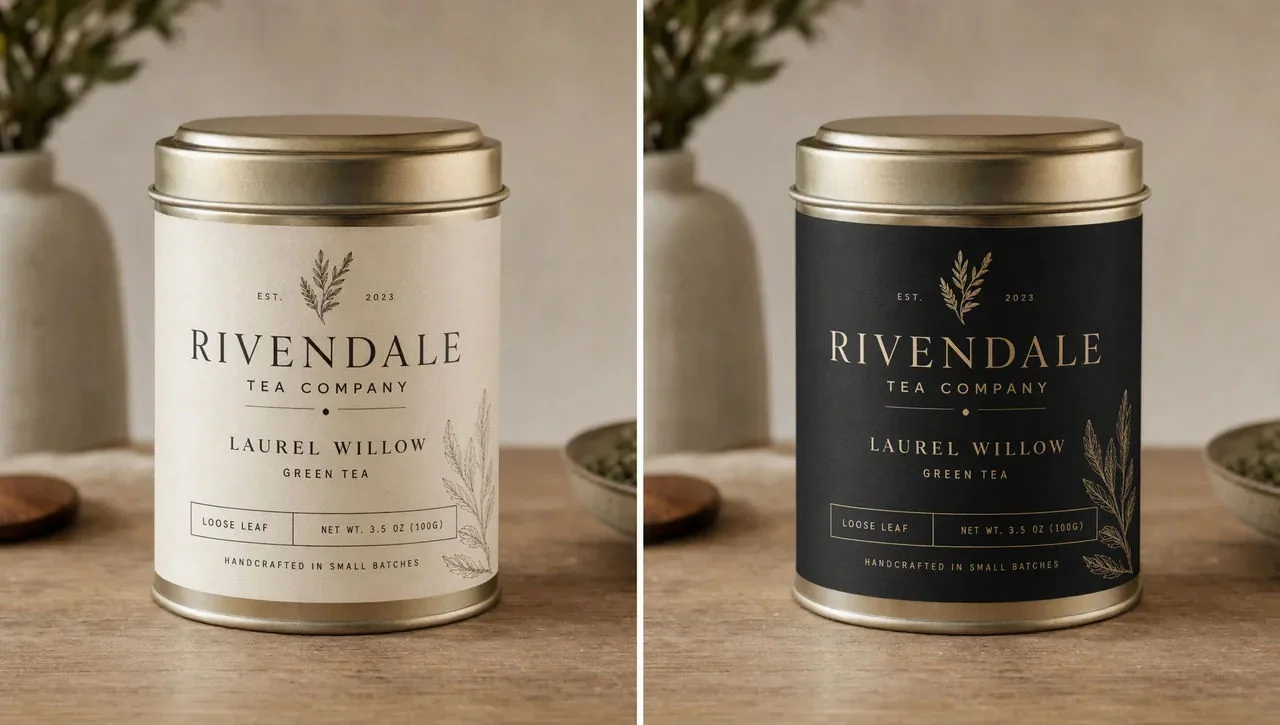
Product label revisions
Explore a new label treatment while retaining the shape and presentation of your product.
Suggested edit prompt
Change the tea tin label to a refined black design with light lettering. Retain the tin shape, label placement, product name, camera angle, and lighting. Keep the label aligned naturally to the curved surface.
Portraits
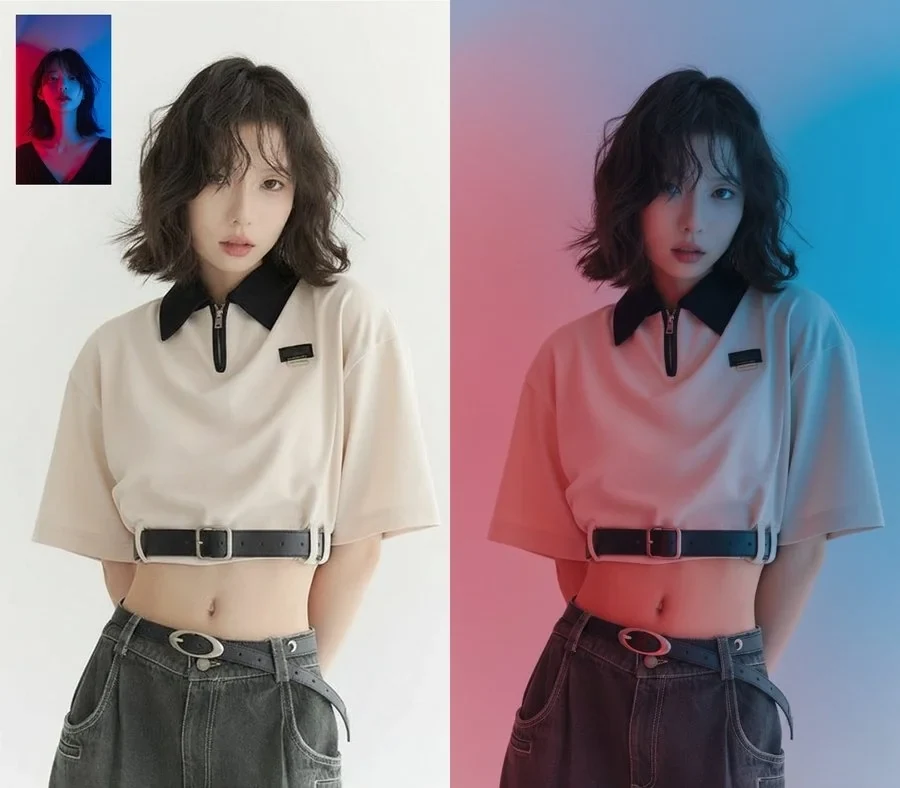
Change the lighting in a portrait
Change the studio lighting while keeping the person, outfit, and framing recognizable.
Suggested edit prompt
Relight this portrait with red light from one side and blue light from the other. Keep the person’s appearance, hairstyle, outfit, pose, and framing as close to the reference as possible.
Styles
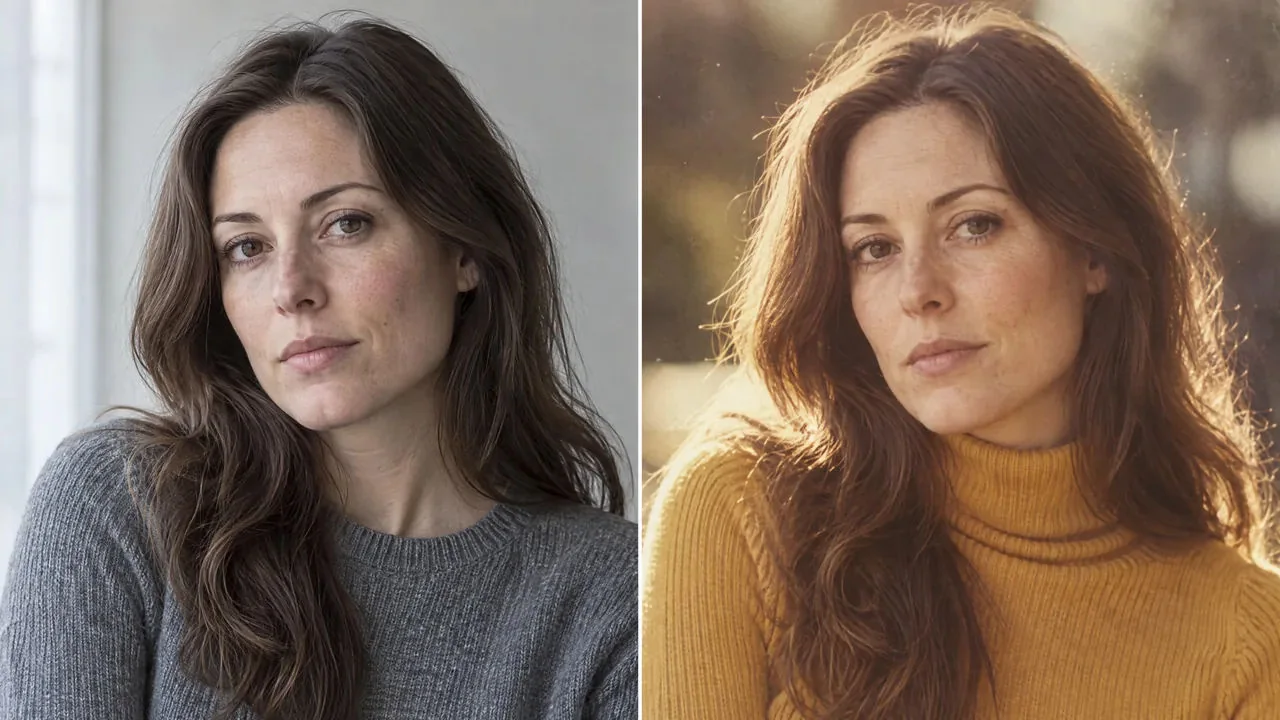
Portrait restyling
Give a modern portrait a retro photographic treatment while retaining the subject and composition.
Suggested edit prompt
Restyle this portrait as a vintage studio photograph with muted colors, subtle film grain, and period-inspired styling. Retain the person’s recognizable facial features, expression, pose, and framing.
ChatGPT Image Editor prompts to try
A useful edit prompt names the change, identifies the target, and lists what should remain similar. Adapt these examples to your own photo. Start with one change so the result is easier to evaluate.
Change a photo background
Replace the background with a softly lit studio in warm gray. Keep the person’s facial features, hairstyle, expression, clothing, and pose as close to the original as possible. Match the subject’s shadows to the new background.
Remove an unwanted object
Remove the empty cup on the left side of the table. Reconstruct the tabletop texture and shadow naturally. Keep the other objects, camera angle, and lighting as close to the reference as possible.
Rewrite text in an image
Change the main headline on the sign to “Fresh coffee daily”. Keep the existing lettering style, sign material, perspective, and surrounding scene as close to the reference as possible. Use exactly the requested spelling.
Restyle an existing image
Reinterpret this photo as a watercolor illustration with soft pigment washes and visible paper texture. Retain the main subject, pose, composition, and relative placement of objects.
For a local edit, identify the object and its location: “the cup on the left side of the table” is easier to interpret than “remove that.” Check text, faces, and product details after generation. Explore the GPT Image 2.5 prompt guide for more ways to structure a brief.
How to use ChatGPT Image Editor online
Use this website’s photo editor from upload to download in three steps.
Upload your photo to ChatGPT Image Editor
Add a JPG, PNG, or WebP file, up to 10 MB each. You can include up to 16 reference images. If you add several, explain which image to edit and what to take from the others. Keep Auto aspect ratio to detect the proportions from the first reference.
Describe your changes in ChatGPT Image Editor
Write what should change and what you want to retain. Choose Flare or Sunburst and your resolution, quality, and output format. The initial Medium / 1K setting costs 1 credit per image; the form shows the cost of your current selection before submission.
Review and download your ChatGPT Image Editor result
Sign in to submit your edit. Follow the task status, inspect the finished image, and download the result. For another revision, upload the downloaded image and write a new instruction. Every new edit uses credits. If status updates are interrupted, resume checking the saved task before submitting again.
ChatGPT Image Editor settings and credit costs
New accounts receive 10 signup credits. Both models start at 1 credit per image for Medium / 1K. Higher quality and resolution increase the cost; review the displayed amount before each edit.
Credits per edited image on this website
Output setting
Flare
Sunburst
Suggested use
Medium / 1K
1 credits
1 credits
Try a focused edit
High / 2K
4 credits
4 credits
Review finer details
Max / 4K
25 credits
25 credits
Request a larger, higher-quality output
Settings shown here range from 1 to 25 credits per image. Choose PNG, JPEG, or WebP for the output. A larger output does not guarantee correct lettering or perfect subject preservation. See every quality and resolution combination.
Starter
A small pack for your next idea.
$9.90
USD · One-time payment
99 credits included
$0.100 per credit
One-time payment, no auto-renewal
Top up whenever you need more
Email support
Basic
More room to explore and refine.
$29.90
USD · One-time payment
330 credits included
About $0.091 per credit
One-time payment, no auto-renewal
Top up whenever you need more
Email support
Best value
Plus
Our lowest cost per credit.
$49.90
USD · One-time payment
600 credits included
About $0.083 per credit
One-time payment, no auto-renewal
Top up whenever you need more
Email support
Credit packs are one-time purchases with no auto-renewal. These are this website’s prices, separate from ChatGPT subscriptions.
ChatGPT Image Editor FAQ
What is ChatGPT Image Editor?
This website offers photo editing with GPT Image 2.5 Flare and Sunburst. You upload a reference and describe the revision you want, then receive a newly generated image. It is an independent service with its own account and credits, not an official ChatGPT product.
How do I edit a photo with ChatGPT Image Editor?
Add your photo, write an instruction, and choose the model, aspect ratio, quality, resolution, and file format. After signing in, review the credit cost and submit. Once processing finishes, compare the output with your reference and download the version you want to keep.
What edits can I request in ChatGPT Image Editor?
Try a new backdrop, a clothing change, different lighting, an illustrated treatment, or a product mockup. You can also ask to replace an object or revise lettering. For your first attempt, request one clear change and list the details that should remain similar.
How do I edit one area with ChatGPT Image Editor?
Name the object and its position, then describe the replacement. For example: “Replace the cup at the front of the table with a small ceramic vase; retain the table, books, and lighting.” The current editor uses text instructions and reference uploads, without a brush or mask selector. Nearby details may also change.
Which models are available in ChatGPT Image Editor?
The editor supports GPT Image 2.5 Flare and Sunburst. Both offer the quality and resolution options shown in the form, including 1K, 2K, and 4K. Check the displayed credit cost when changing settings; the amount depends on the model, quality, and resolution you select.
Which files can I use with ChatGPT Image Editor?
Reference uploads accept JPG, PNG, and WebP, with a maximum of 10 MB per file. You can add up to 16 references to one edit. Output settings include PNG, JPEG, and WebP; choose your desired format before submitting.
How do I use multiple references in ChatGPT Image Editor?
Upload the main photo first and explain the role of each additional reference. For instance, identify one image as the photo to revise, another as an outfit reference, and a third as a lighting reference. You can remove an unwanted upload using the × button on its thumbnail.
Does ChatGPT Image Editor preserve faces, logos, and small details?
Inspect those details after every edit. Reference photos and explicit instructions help communicate what to retain, but the output is generated again and can change facial features, lettering, textures, or proportions. Exact pixel preservation and correct brand typography are not guaranteed.
Can ChatGPT Image Editor restore or colorize an old photo?
You can request scratch removal, gentler noise reduction, improved contrast, or colorization. Specify which features and textures to retain. Treat the result as a proposed restoration: the model can invent details or colors that cannot be established from the original photograph.
Can ChatGPT Image Editor replace a manual photo editor?
Use this editor when you want to describe a visual revision in words and explore the result. A manual editor gives direct control over selections, layers, and individual pixels. For work that needs exact placement or retouching, you may want to finish the generated image in a manual editor.
Is ChatGPT Image Editor free to try?
New accounts receive 10 signup credits on this website. Medium quality at 1K costs 1 credit per image with either model. Other settings can cost more. Each submitted revision uses credits, and one-time credit packs are available when you need more.
Does ChatGPT Image Editor need ChatGPT Plus or an API key?
No. Sign in with this website’s account to use its credit balance. You do not need to supply an OpenAI API key or connect ChatGPT Plus. A ChatGPT subscription does not add credits to this website.
Can I revise and download my ChatGPT Image Editor result?
Download the output, upload it as a new reference, and describe your next revision. Each new submission uses credits. If a task is still processing or its status check was interrupted, resume checking the existing task instead of submitting the same edit again.